This article gives an overview of the One-Boat Network App and acts as a guide to navigating the app and it's functions.
JUMP TO:
- Compatibiliy and One-Boat Network App Downloading App
-
Pairing Products and Updated Software Using One-Boat Network App
- Pair an XPLORE, APEX or SOLIX to a Mobile Phone.
- Pair an Advanced GPS Trolling Motor to a Mobile Device
- Pair the Mobile Device to the Raptor
- Pair the Mobile Device to a Bluetooth Talon
- Update XPLORE, APEX or SOLIX Software
- Updating Advanced GPS Navigation Software for Trolling Motor and Wireless Remote
- Update the Software on a Raptor Shallow Water Anchor
- Update Software on a Talon Shallow Water Anchor
- Chart View
- Waypoints and Spot-Locks
- Navigate Using the One-Boat Network App
- My Data
- Import or Export Navigation Data
- Minn Kota Trolling Motors Using One-Boat Network App
- Shallow Water Anchors Using One-Boat Network App
- Chart Management Using One-Boat Network App
- Self Help and Technical Support with One-Boat Network App
- Building a One-Boat Network
- One-Boat Network App Operations Guide pdf.
Compatibility and Downloading the One-Boat Network App
One-Boat Network Compatibility
The One-Boat Network allows you to connect your Minn Kota and Humminbird products to create a single network on your boat.
Compatible Minn Kota Products
-
Bluetooth Talon and Raptor Shallow Water Anchors
When you find a spot, there’s no time to lose. That’s why Talon and Raptor are controllable from anywhere. Use your physical remote, digital remote in the One-Boat Network App, or the interface on your Humminbird fish finder to control your anchor – no matter where you are. -
Minn Kota Trolling Motors with Advanced GPS Navigation installed
Minn Kota trolling motors obey your every order, from navigating on the water to getting you in and out of it. Enhanced GPS functionality keeps you on the move. Hit Spot-Lock® and your motor will stick you to any fishing spot. Mark it as a waypoint using your Humminbird fish finder map and you can save that spot for later. The next time you want to return, just select the waypoint and your motor will drive your boat right to it. Models with the Auto Stow/Deploy feature will get your motor in and out of the water for you.
*NOTE: i-Pilot and i-Pilot Link trolling motors are NOT compatible with the One-Boat Network App.
Compatible Cannon Products
-
Optimum and Optimum TS
Dive into the depths with confidence, managing up to 4 Cannon Optimum™ downriggers directly from your Humminbird display. Easily monitor and adjust downrigger operations and settings through the control head. For enhanced control, Humminbird models seamlessly connect wirelessly with Cannon Optimum downriggers, providing real-time data from the Fish Hawk Lithium Ultra System and the Fish Hawk X4D System for an elevated fishing experience- NOTE: Cannon Optimum uses Cannon Mobile App and is currently not compatible with the One-Boat Network App. Click here for Installing the Cannon Mobile App on your Android or iPhone
Compatible Humminbird Products
- Select Humminbird models communicate wirelessly with Minn Kota Talon® and Raptor® shallow water anchors to deploy, retract and control anchor settings. Spike them down, see the anchor depth, set the anchor mode and more, with the convenience of an integrated interface on a Humminbird fish finder.
- Advanced GPS Navigation is compatible with the following Humminbird models:
- HELIX G3N*, HELIX G4N*, All APEX, XPLORE, and SOLIX models.
- Important! A software update may be required, please see the current software version available for your Humminbird here.
- Select Humminbird models seamlessly connect wirelessly with Cannon Optimum and Optimum TS Downriggers. This enables them to display information from the Fish Hawk Lithium Ultra System and the Fish Hawk X4D System, as well as manage and control downrigger operations and settings directly.
Download and Install the One-Boat Network App
You can download and install the One-Boat Network App on your Android or i-Phone by following the steps below. You can also navigate to the Play Store on Android and the App Store on i-Phone and then searching for "One Boat Network". To install the app, follow the instructions on your phone.
Android
*Your Android must have software version 6.0 or newer (API level 23)
-
If you are currently using your phone:
- Tap the link below to Go To the One-Boat Network App in the Google Play Store
- Tap on Install (the app is free to install)
- Once installed, Tap Open
-
If you are not currently using your device:
- On your device, open Google Play Store
- Search for One-Boat Network
- Tap on One-Boat Network by Johnson Outdoors
- Tap on Install (the app is free to install)
- Once installed, Tap Open
Click here to download the One-Boat Network App for Android
Apple iOS
*Your Apple iOS must have software version 12.0 or newer
-
If you are currently using your phone:
- Tap the link below to Go To the One-Boat Network App in the Apple App Store
- Tap on Install (the app is free to install)
- Once the One-Boat Network App is installed, tap the Open button
-
If you are not currently using your device:
- On your iPhone, open the App App Store.
- Search for One-Boat Network
- Tap the Get button (the app is free to install)
- If prompted, enter in your Apple ID to install
- Once the One-Boat Network App is installed, tap the Open button
Click here to download the One-Boat Network App for i-Phone
Note: When you log out of the One‑Boat Network App, you will need to log back in using your original email address and password. If you don’t remember your password, you can select “Forgot Password” to reset it.
Pairing Products and Updating Software Using One-Boat Network App
Updating Software on an XPLORE, APEX, or SOLIX using the One-Boat Network App
Pair an XPLORE, APEX or SOLIX to a Mobile Phone | Update XPLORE, APEX or SOLIX Software
Once you have signed in to the One-Boat Network App, the app will walk you through connecting your mobile device to your Humminbird and Minn Kota devices. You can choose to skip this step and come back to it later. To return to the Bluetooth Pairing menu, select Self Help from the Home screen and then select Bluetooth Pairing
.
Pair an XPLORE, APEX or SOLIX to a Mobile Phone.
- On your XPLORE, APEX, or SOLIX, press the Home key.
- Select Bluetooth tool. The tool may be called Bluetooth, One Boat Network or "Network + Devices"
- Under Phone Bluetooth Settings or add devices, select Connect Phone to make you Humminbird unit discoverable by your mobile device.
- Navigate to the Bluetooth Settings on your mobile device.
- Select you Humminbird model name under Other Devices (IOS) or Available Devices ( Android)
- When prompted, tap Pair on your phone. Once your Humminbird unit is paired with your device, the Humminbird model name will display under My Devices in the iOS Bluetooth settings or Paired Devices in the Android Bluetooth settings.
- In your phone settings menu, turn on Show Notifications (iOS only).
Update XPLORE, APEX or SOLIX Software
Note: The mobile device must remain powered on, and the One‑Boat App must stay open to prevent interruptions during the software update. You can enable the Auto-Lock Disable setting under setting on the One-Boat Network App.
Steps to Update Software
- Open the One-Boat Network App on your mobile device.
- Tap Network + Updates.
- Tap Download Update next to the Humminbird device you want to update. The download progress is displayed on the screen. You can also tap on the More Options icon (...) next to the device you want to update, and then tap Download Update. Use this menu to pause or cancel the download (Apple iOS only).
- Tap Transfer Software next to the selected device once the download is complete. You can also tap the More Options icon (...) again, and then tap Transfer Software or Delete Software.
- Confirm the estimated transfer time.
- Tap the radio button to select where to upload the software update (internal storage, SD card 1, or SD slot 2).
- Tap Start Transfer (Apple iOS) or Transfer (Google Android). The upload progress is displayed under the selected unit in the One-Boat Network App and in the System Status view on the fish finder.
- Follow the on-screen prompts on the fish finder to complete the software installation.
- If on-screen prompts do not appear on the screen proceed as follows:
- On your SOLIX or APEX unit go to your Home Screen by either pressing the home button, or the two finger swipe down the screen to access the lower widgets.
- From the home page you would swipe the lower widgets across the bottom until you get to file widget and then tap the files widget.
Pair HELIX G3N Series or Newer
- Main Menu: Press the MENU key twice.
- Open the Phone Bluetooth Menu: Select the Accessories tab.
- Select Phone Bluetooth. Press the RIGHT Cursor key.
- Select Connect New Phone. Press the RIGHT Cursor key. It will take a moment for this option to appear in the menu.
- Follow the on-screen prompts to start the pairing process.
- When the phone name displays in the menu, select it. Press the RIGHT Cursor key.
- Check your phone. When prompted, tap Pair on your phone. 8. In your phone Settings menu, turn on Show Notifications.
Updating Advanced GPS Navigation Software for Trolling Motor and Wireless Remote
Pair an Advanced GPS Trolling Motor to a Mobile Device | Update the Advanced GPS Navigation Control Head | Update Advanced GPS Wireless Remote Software
Once you have signed in to the One-Boat Network App, the app will walk you through connecting your mobile device to your Humminbird and Minn Kota devices. You can choose to skip this step and come back to it later. To return to the Bluetooth Pairing menu, select Self Help from the Home screen and then select Bluetooth Pairing
.
Pair an Advanced GPS Trolling Motor to a Mobile Device
- On your mobile device, open the Settings menu.
- Select Bluetooth and turn it on (if it is not already on). Keep the Bluetooth menu open while doing the following steps.
- Enable Pairing Mode on the trolling motor:
- Press and hold the Pair button on the trolling motor Control Head.
- The trolling motor will emit a continuous tone while in Pairing Mode.
- Navigate to the Bluetooth Settings on your mobile device.
- Select “Minn Kota Controller 4.0” under the Bluetooth Device List.
- It may take a moment for the trolling motor to appear in the menu. Continue to hold the Pair button during this process.
- The trolling motor will emit 3 beeps when the pairing is successfully completed, and you may release the Pair button.
- If unsuccessful, repeat the process.
Update the Advanced GPS Navigation Control Head
- Open the One-Boat Network App on your mobile device.
- Tap Network + Updates.
- Tap Download Update next to the Advanced GPS Trolling Motor. The download progress is displayed on the screen.
- Tap Transfer Software next to the selected device once the download is complete. The motor will power cycle once complete the update.
Update Advanced GPS Wireless Remote Software
- Be sure that the software in the Control Head is updated before updating the Wireless Remote.
- Once the Control Head is up-to-date, press the menu button on the remote.
- Use the Speed Up or Speed Down button to find System. Use the Steer Right button to select System.
- Once in the System menu, use the Speed Up or Speed Down button to find Update Software. Press the Steer Right button to select Update Software.
- If the software is up-to-date, the screen will display "No New Software Found" and will list the current version installed. Press the Steer Right button to cancel.
- If the software is not up-to-date, the display screen will read "New Software Available" and will list the current version installed and the new version that can be installed. Use the Speed Up or Speed Down button to scroll to Update.
- Press the Steer Right button to select Update. Once the software has been downloaded, the display screen will reboot and the Wireless Remote will power up and return to the home screen.
Pair the Mobile Device to the Raptor
The One-Boat Network app can be used to control the Raptor using a device that is paired to the Raptor with a Bluetooth connection. Before pairing the device with the Raptor, the One-Boat Network app should first be successfully downloaded, installed and signed in. You can confirm that the app was successfully installed by opening it on your device. Once you have signed in to the One-Boat Network App, the app will walk you through connecting your mobile device to your Humminbird and Minn Kota devices. Once you have signed in to the One-Boat Network App, the app will walk you through connecting your mobile device to your Humminbird and Minn Kota devices.
-
Click here for assistance with downloading, installing and signing into the One-Boat Network app.
One-Boat Network App - Install, Create Account, Sign-in, Forgot Password (Android and iOS) (2023-present)
- Enable Bluetooth on the Mobile Device
- Open the Settings menu.
- Select Bluetooth.
- Select On.
- Keep the Bluetooth menu open and proceed to the next procedure.
-
Single Raptor
-
Apple iOS
- Enable Pairing Mode on the Raptor by pressing the Pair button on the Raptor. The Raptor will illuminate a blue light to indicate pair mode is active.
- Navigate to the Bluetooth Settings on your mobile device.
- Select BT Raptor under the Other Devices. It may take a moment for the Raptor to appear in the menu. Once your Raptor is paired with your device, BT Raptor will display under My Devices in the iOS Bluetooth settings.
-
Android
- Enable Pairing Mode on the Raptor by pressing the Pair button on the Raptor. The Raptor will illuminate a blue light to indicate pair mode is active.
- Navigate to the Bluetooth Settings on your mobile device. Select the Scan button to begin the search for your device.
- Select BT Raptor under Available devices. It may take a moment for the Raptor to appear in the menu. Once your Raptor is paired with your device, BT Raptor will display under Paired devices in the Android Bluetooth Settings.
-
Apple iOS
-
Dual Raptors
If you are connecting dual Raptors, the Raptors must be paired together before connecting them to your mobile device. Use the following instructions to pair the Raptors together, then follow the instructions for the single Raptor to pair it to your mobile device.
- Place one Raptor in Pairing Mode: Press the Pair button on the Raptor. The blue pair light will illuminate to indicate pair mode is active.
- Place second Raptor in Pairing Mode: Press the Pair button on the second Raptor. The blue pair light will illuminate to indicate pair mode is active.
- Both Raptors will beep three times once they are connected, and then both Raptor mode lights will flash green.
- On the starboard Raptor, press the Up button to set that Raptor as starboard. The starboard Raptor’s mode light will temporarily illuminate green and the port Raptor’s mode light will illuminate red to indicate that the Raptor positions are set.
-
Single Raptor
Pair the Mobile Device to a Bluetooth Talon
The One-Boat Network app can be used to control the Talon using a device that is paired to the Talon with a Bluetooth connection. Before pairing the device with the Talon, the One-Boat Network app should first be successfully downloaded, installed and signed in. You can confirm that the app was successfully installed by opening it on your device. Once you have signed in to the One-Boat Network App, the app will walk you through connecting your mobile device to your Humminbird and Minn Kota devices.
- Click here for assistance with downloading, installing and signing into the One-Boat Network app.
- One-Boat Network App - Install, Create Account, Sign-in, Forgot Password (Android and iOS) (2023-present)
- Retract the spike on the Talon(s) by pressing the Up
button on the Indicator Panel.
- Enable Bluetooth on the Mobile Device
- Open the Settings menu.
- Select Bluetooth.
- Select On.
- Keep the Bluetooth menu open during the rest of the process. Follow the steps below for pairing to one Talon or Two Talons.
- You may need to turn the Bluetooth off and back on to start the scanning process again.
Pair a Mobile Device to one Bluetooth Talon
-
Apple iOS
- Enable Pairing Mode on the Talon:
Press and hold the Up button and the Down button simultaneously on the Indicator Panel. The Depth Indication LEDs will begin to flash blue. Once the LEDs are flashing, release the buttons on the Indicator Panel. The Talon will go into Pairing Mode for 30 seconds. - On your mobile device, select BT Talon under the Other Devices. It may take a moment for the Talon to appear in the menu. Once your Talon is paired with your device, BT Talon will display under My Devices in the iOS Bluetooth settings.
- Enable Pairing Mode on the Talon:
-
Android
- Enable Pairing Mode on the Talon: Press and hold the Up and Down buttons on the Talon for two seconds. The depth lights will illuminate in a blue pattern to indicate pairing mode is active.
- Navigate to the Bluetooth Settings on your mobile device. Select the Scan button to begin the search for your device.
- On your mobile device, select BT Talon under Available devices. It may take a moment for the Talon to appear in the menu. Once your Talon is paired with your device, BT Talon will display under Paired devices in the Android Bluetooth Settings.
Pair a Mobile Device to two Bluetooth Talons
If you are connecting two Talons, the Talons must be paired together before connecting them to your mobile device. Use the following instructions to pair the Talons together, then follow the instructions above for pairing a Talon to your mobile device.
- Place one Talon in Pairing Mode: Press and hold the Up button and the Down button simultaneously on the Indicator Panel. The Depth Indication LEDs will begin to flash blue. Once the LEDs are flashing, release the buttons on the Indicator Panel. The Talon will go into Pairing Mode for 30 seconds.
- Place second Talon in Pairing Mode: Press and hold the Up and Down buttons on the Talon for two seconds. The depth lights will illuminate in a blue pattern to indicate pairing mode is active.
- Both Talons will beep three times once they are connected, and then both Talon mode lights will flash green.
- On the starboard Talon, press the Up button to set that Talon as starboard. The starboard Talon’s mode light will temporarily illuminate green and the port Talon’s mode light will illuminate red to indicate that the Talon positions are set.
Update the Software on a Raptor Shallow Water Anchor
How to View the Software Version on Raptor Shallow Water Anchor
- With the One-Boat Network app open and paired with the Raptor, bring up the One-Boat Network app Home Screen.
- Tap Network + Updates on the Home Screen.
- Find the Raptor Listed. The Installed Software will display the Raptor software currently installed on the Raptor.
OR
- With the One-Boat Network app open and paired with the Raptor, bring up the One-Boat Network app Home Screen.
- Tap the Anchor icon on the Home Screen to open the Raptor app Home Screen.
- Tap the Raptor Settings on the Raptor app Home Screen.
- In Raptor Settings, tap Manage Bluetooth Devices.
- In the Manage Bluetooth Device Menu, look for the Raptor under the Classic Bluetooth Menu
- Find the Raptor listed. The Software Version (Android) or Installed Software (iOS) will display the Raptor software currently on the Raptor.
Update the Raptor Software with the One-Boat Network App for Android
- With the One-Boat Network app open and paired with the Raptor, bring up the One-Boat Network app Home Screen.
- Tap Network + Updates on the Home Screen to open the Network + Menu.
- Find the Raptor listed. The Installed Software will display the Raptor software currently installed on the Raptor. Available Update will list available software for update. Tap Transfer Software.
- While the software is transferring, keep the device in range of the Raptor and both the Raptor and device powered on.
- When the software load is complete the Raptor, the LED will go through a start up sequence, and the Raptor will beep to signal a restart. The app will display Raptor Update Complete. Raptor restarting.
- After the Raptor restarts, give the OBN app a moment to reconnect to the Raptor and display the updated software information. The Installed Software matches the previous Available Update, and on Available Update is displayed.
Updating Software on Raptor using One-Boat Network App for iOS
- With the One-Boat Network app open and paired with the Raptor, bring up the One-Boat Network app Home Screen.
- Tap Network + Updates on the Home Screen to open the Network + Updates Menu.
- Find the Raptor listed. The Installed Software will display the Raptor software currently installed on the Raptor. The Available Update will list available software for the update. Select the Ellipsis to bring up the update menu.
- While the software is transferring, keep the device in range of the Raptor and both Raptor and device powered on.
- When the software load is complete on the Raptor, the LED will go through a start up sequence, and the Raptor will beep to signal a restart. The app will display on the Raptor Update Complete. Raptor is restarting. Tap to Confirm.
- After Raptor restarts., give the OBN app a moment to reconnect to the Raptor and display the updated software information. The Installed Software matches the previous Available Update, and no Available Update is displayed when tapping the Ellipsis.
Update Software on a Talon Shallow Water Anchor
How to View the Software Version on Raptor Shallow Water Anchor
- With the One-Boat Network app open and paired with the Talon, bring up the One-Boat Network app Home Screen.
- Tap Network + Updates on the Home Screen to open the Network + Updates Menu.
- Find the Talon listed. The Installed Software will display the Talon software currently installed on the Talon.
OR
- With the One-Boat Network app open and paired with the Talon, bring up the One-Boat Network app Home Screen.
- Tap the Anchor icon on the Home Screen to open the Talon Home Screen.
- Tap the Talon Settings on the Talon app Home Screen.
- In Talon Settings, tap Manage Bluetooth Devices.
- In the Manage Bluetooth Device Menu, look for the Talon under the Classic Bluetooth Menu.
- Find the Talon listed. The Software Version (Android) or Installed Software (iOS) will display the Talon software currently installed on the Talon.
Update the Talon Software with the One-Boat Network App for Android
- With the One-Boat Network app open and paired with the Talon, bring up the One-Boat Network app Home Screen.
- Tap Network + Updates on the Home Screen to open the Network + Updates Menu.
- Find the Talon listed. The Installed Software will display the Talon software currently installed on the Talon. The Available Update will list available software for update. Tap Transfer Software. Selecting the Ellipsis also brings up a menu with an option to Transfer Software.
- While the software is transferring, keep the device in range of the Talon and both the Talon and device powered on.
- When the software load is complete on the Talon, the LED will go through a startup sequence, and the Talon will beep to signal a restart. The app will display Talon Update Complete. Talon is restarting.
- After the Talon restarts, give the OBN app a moment to reconnect to the Talon and display the updated software information. The Installed Software matches the previous Available Update, and no Available Update is displayed.
Update the Talon Software with the One-Boat Network App for iOS

- With the One-Boat Network app open and paired with the Talon, bring up the One-Boat Network app Home Screen.
- Tap Network + Updates on the Home Screen to open the Network + Updates Menu.
- Find the Talon listed. The Installed Software will display the Talon software currently installed on the Talon. Available Update will list available software for update. Select the Ellipsis to bring up the update menu.
- While the software is transferring, keep the device in range of the Talon and both the Talon and device powered on.
- When the software load is complete on the Talon, the LED will go through a startup sequence, and the Talon will beep to signal a restart. The app will display Talon Update Complete. Talon is restarting. Tap Confirm.
- After the Talon restarts, give the OBN app a moment to reconnect to the Talon and display the updated software information. The Installed Software matches the previous Available Update, and no Available Update is displayed when tapping the Ellipsis.
One Boat Network App Chart View
Use the Settings menu on the Main Menu to set default units of measurement, disable auto-lock, restore purchases, and send diagnostic information.
- Tap the Settings
icon under the One-Boat Network banner at the top right of the app.
- Select one of the following settings to change.
- Select one of the following settings to change.
Touch Screen Overview
Chart View
The Chart View App opens to display a map based on your latitude/longitude position, so your current position will be displayed automatically. You can scroll around and zoom in and out of the map to view other locations. The app provides free access to the Humminbird basemap and Google Maps. You can purchase a yearly subscription to get access to all US and Canada VX charts. See Chart Management for more information.
Note: If not already subscribed to the VX mapping, a free 30-day VX mapping trial can be selected from the main screen.
Apple IOS
- Tap Chart View from the Home screen.
- Your mobile device will launch a pop-up screen asking if you allow One-Boat Network to use your location. Tap Allow While Using App.
- Before the Chart View App home screen will open, tap Agree on the on-screen prompt. The on-screen prompt will display once each time the app is launched.
Android
- Tap Chart View from the Home screen.
- The first time you open Chart View, your mobile device will launch a pop-up screen asking if you allow One-Boat Network to use your location. Tap Allow While Using App.
- Tap Agree on the on-screen prompt. The on-screen prompt will display once each time the app is launched.
-
Chart View
Chart View What's on Display
Open the Cursor Bottom Sheet
When the cursor is on and active on the screen, the Cursor bottom sheet is displayed at the bottom of the screen. This displays the distance to the cursor, the bearing and the position of the cursor. Tap the Waypoint icon to mark a waypoint at the cursor position (see Mark Waypoints).
Zoom In and Zoom Out
- Tap the Chart View icon.
- Zoom In: Touch the screen with two fingers and move them apart to zoom in on the chart OR Double tap the screen to zoom in. Zoom Out: Touch the screen with two fingers and bring them closer together to zoom out. OR Tap the screen with two fingers.
Change the Chart Source
The chart source can be changed between the Humminbird basemap and Google maps. The settings options are reflected by the chart source.
- Tap the Chart View icon.
- Tap the Humminbird icon or Google icon to toggle between the two chart sources.
OR
- Tap the Chart View icon.
- Tap the Menu icon in the top, right corner.
- Tap Chart Source, and select Humminbird or Google.
Change the Selected Chart
Once you have an active subscription, you will need to select the chart you want to view. The Basemap will show up for all areas, but you must select the chart source to view LakeMaster or CoastMaster features. Humminbird must first be selected as the chart source (see Change the Chart Source).
- Tap the Chart View icon.
- Tap the Menu
icon in the top, right corner.
- Scroll down to Chart Management, and tap Selected Chart
- Tap the LakeMaster or CoastMaster chart you want to view in the One-Boat Network App.
Set Up Chart Settings: Basemap
Use the following instructions to customize the chart display when the Basemap is selected.
- Tap Chart View.
- Tap the Menu icon in the top, right corner.
- Tap an individual chart display option to show or hide it. (check mark = visible, blank = hidden)
Set Up Chart Settings: VX Charts
Use the following instructions to customize the chart display when a VX chart is selected. See Subscribe to VX Charts for more information on the VX Chart Subscription service. Additional LakeMaster and CoastMaster settings are discussed in the following sections.
- Tap Chart View.
- Tap the Menu icon in the top, right corner.
- Scroll to Chart Settings and tap General.
- Tap an individual chart display option to show or hide it. (check mark = visible, blank = hidden)
Adjust the Chart Text and Symbol Size
- Tap Chart View.
- Tap the Menu icon in the top, right corner.
- Scroll down to Chart Setup, and tap Text Size or Symbol Size to make an adjustment.
- Tap Small or Large.
Turn On Night Mode
Night mode darkens the screen for easier viewing at night.
- Tap Chart View.
- Tap the Menu icon in the top, right corner.
- Tap the toggle to turn on/off night mode.
Set the Chart Orientation
Set your display preference: North-Up or Head-Up.
- With the Chart View displayed tap the Chart Orientation Indicator to change the chart orientation (Head-up, North-up).
OR
- Tap Chart View.
- Tap the Menu icon in the top, right corner.
- With a Basemap displayed, under Chart Settings, tap Orientation. With a VX Chart displayed, under Chart Settings, tap General, and then tap Orientation.
- Tap Head Up or North Up to select your chart orientation.
Adjust the Water Level Offset
It is important to note if the water is higher or lower than usual. For example, if you know the lake is down 4 feet, set the Water Level Offset to -4. The displayed numbers on the Contour Lines will adjust from the Water Level Offset setting, and the water level offset will be highlighted in brown to extend the land visually on the display.
- Tap Chart View.
- Tap the Menu icon in the top, right corner.
- Scroll down to Chart Setup, and tap the Water Level Offset toggle.
- Drag the slider bar to set the water level offset.
- If the water level is higher than normal, set a positive amount.
- If the water level is lower than normal, set a negative amount.
- If the water level has not changed (normal), turn off Water Level Offset.
Select Chart Preset
Use Chart Presets to quickly alternate between settings. You can use the default Fishing or Navigation settings provided, or you can create a custom User preset with your preferences. The Fishing and Navigation presets are also fully customizable. You can restore each preset back to its default settings at any time.
- Tap Chart View.
- Tap the Menu
icon in the top, right corner.
- Tap Chart Preset.
- Tap Fishing, Navigation or User. The Chart Settings will be updated based on the preset selected.
Restore Preset Defaults
You can restore the Fishing and Navigation Preset defaults at any time.
- Tap Chart View.
- Tap the Menu
icon in the top, right corner.
- Under Chart Settings, select Restore Preset.
- Tap Confirm if you are sure you want to reset the preset default settings.
Filter Chart Objects
Use Chart Objects to add or hide chart details and navaids on the Chart View.
- Tap Chart View.
- Tap the Menu
- Under Chart Settings, tap Chart Objects.
- You can tap one of the following to enable/disable that group of objects:
- Navigation: Shows navaids and labels, light sectors and descriptions, anchorage, caution and routing data, nautical objects, tides and currents, spot soundings, and oil and gas production areas.
- Water: Shows wrecks, rocks, obstructions, natural water features, fishing objects, and the nature of the seabed.
- Land: Shows ports, shoreline objects, roads, points of interest (POIs) and POI labels, and natural land features. 5. When a Chart Object group is enabled, tap an individual chart object to show or hide it. (check mark = visible, blank = hidden)
Show/Hide Spot Soundings
Spot Soundings are depth measurements shown on the chart.
- Tap Chart View.
- Tap the Menu
- Under Chart Settings, tap Chart Objects.
- Tap Spot Soundings to show or hide it. (check mark = visible, blank = hidden)
- If Spot Soundings is enabled, tap and drag the Soundings Filter slider to adjust the depth level.
Show/Hide Rocks
- Tap Chart View.
- Tap the Menu
- Under Chart Settings, tap Chart Objects.
- Tap Rocks to show or hide it. (check mark = visible, blank = hidden)
- If Rocks is enabled, tap and drag the Rock Filter slider to adjust the depth level.
Show/Hide Tides and Currents
Turn on Tides and Currents to review information for the nearest tide and current stations to your present position.
- Tap Chart View.
- Tap the Menu
- Under Chart Settings, tap Chart Objects.
- Tap Tides and Currents to show or hide it. (check mark = visible, blank = hidden)
Show/Hide Drying Areas
Tidal drying areas are highlighted on your map by a green and tan hatched pattern. Drying areas can be turned on and off through the Natural Land Features option.
- Tap Chart View.
- Tap the Menu
- Under Chart Settings, tap Chart Objects.
- Tap Natural Features to show or hide it. (check mark = visible, blank = hidden)
Adjust Depth/Contours
VX charts allow you to show or hide contour lines, highlight a depth range, highlight shallow water set safe depth levels and more.
- Tap Chart View.
- Tap the Menu
- Under Chart Settings, tap Depth/Contours.
Show/Hide Contour Lines in the Chart View
Show/Hide Contour Lines Show or hide water contour lines in the Chart View.
- Tap Chart View.
- Tap the Menu
- Under Chart Settings, tap Depth/Contours.
- Tap Contour Lines to toggle the contour lines on or off.
Adjust the Contour Density
Use Contour Density to adjust the density of the contour lines displayed on the map. You can set the density to High, Medium or Low. Contour Lines must be on to adjust this feature.
- Tap Chart View.
- Tap the Menu
- Under Chart Settings, tap Depth/Contours.
- Tap Contour Density.
- Tap High, Medium or Low
Change the Contour Lines Color
Use Contour Color to change the color of the contour lines displayed on the map.
- Tap Chart View.
- Tap the Menu
- Under Chart Settings, tap Depth/Contours.
- Tap Contour Color.
- Tap the color option of the contour lines.
Change the Contour Source
Customize the contour sources displayed on the chart with Fishing and Nautical sources (available for select regions).
- Tap Chart View.
- Tap the Menu
- Under Chart Settings, tap Depth/Contours.
- Tap Depth/Contour Source.
- Tap a contour source to show or hide it. (check mark = visible, blank = hidden)
Display Depth Palette and Adjust the Range and Color
You can adjust the range of data shown on the chart by changing the minimum and maximum range on the display. The range you select affects how the depth colors are displayed.
Show/Hide Depth Palette
- Tap Chart View.
- Tap the Menu
- Under Chart Settings, tap Depth/Contours.
- Tap Depth Palette to toggle the depth palette colors on and off.
Adjust the Palette Range
- Tap Chart View.
- Tap the Menu
- Under Chart Settings, tap Depth/Contours.
- Find Min Range, and tap and drag the slider to adjust the setting.
- Find Max Range, and tap and drag the slider to adjust the setting.
Change the Color Palette
The Color Palette menu changes the colors used to display the map.
- Tap Chart View.
- Tap the Menu
- Under Chart Settings, tap Depth/Contours.
- Tap Color Palette and tap the color selection.
- If you have selected a blue color palette, you can adjust the number of shades displayed. Tap and drag the slider to adjust the setting.
Set Depth Highlights
Highlight deep and shallow waters in Chart View. Use a Depth Highlight Range to highlight a range on each side of the highlighted depth. For example, if you know a certain fish is holding at 18 to 20 feet, you can set the Depth Highlight at 19 feet, and the Depth Highlight Range at +/– 1 foot. The view will show a highlighted band in the chosen color from 18 to 20 feet. You can select up to 4 Depth Highlights.
Show/Hide Depth Highlights
- Tap Chart View.
- ap the Menu
- Tap Depth Highlights.
- Tap Depth Highlights to toggle the depth highlights on or off.
Highlight Shallow Water
The Shallow Water Highlight identifies shallow water when the depth is equal to or less than the level you set. For example, if your boat has a draft of 3 feet, set the Shallow Water menu to 3 feet, and the display will draw a red band from 0 to 3 feet. Depth Highlights must be turned on to enable this feature.
- Tap Chart View.
- Tap the Menu
- Tap Depth Highlights.
- Tap Shallow Water Highlights to toggle the shallow water highlights on or off.
- Tap and drag the slider to adjust the highlighted depth level.
- Tap Color to select a shallow water highlight color.
Highlight a Depth Range Depth
Highlights allow you to select up to four depth ranges to be highlighted on the chart. Depth Highlights must be turned on to enable this feature.
- Tap Chart View.
- Tap the Menu
- Tap Depth Highlights.
- Tap Depth Highlight 1 to toggle the depth highlight on or off.
- Under Min Range, tap and drag the slider to adjust the minimum depth range.
- Under Max Range, tap and drag the slider to adjust the maximum depth range.
- Tap Color to select a color for the depth highlight range.
- Repeat Steps 4-7 for each additional depth highlight (up to four).
Set Safe Depth Levels
Use the Safe Depth feature to set the minimum depth level for your vessel and to turn on highlights for hazards shallower than that level.
- Tap Chart View.
- Tap the Menu
- Under Chart Setup, tap Safe Depth.
- Tap and drag the slider to adjust the safe depth setting.
- Tap the following Safe Depth Settings to enable/disable them:
-
- Sounding Highlight: Displays soundings shallower than the safe depth in red.
- Symbol Highlight: Displays hazardous objects shallower than the safe depth with a red outline.
-
Always Show Hazards: Forces hazardous objects and spot soundings shallower than the safe depth to display even if the chart object data is hidden.
Change Layers
You can display layers that show aerial imagery (available for Premium lakes and coast), shaded relief or bottom hardness in Chart View. The transparency of Shaded Relief and Bottom Hardness is customizable. The source and display area for Aerial Imagery can be changed.
- Tap Chart View.
- Tap the Menu
- Under Chart Settings, tap Layers.
- Tap a layer to turn it on or off.
- To adjust the transparency of Shaded Relief or Bottom Hardness, tap and drag the slider to adjust the transparency setting.
Waypoints and Spot-Locks
Use the instructions in the following section to create waypoints and spot-locks using One-Boat Network on your mobile device. You can export saved navigation data as .GPX files that can be saved to SD or microSD cards to use on your Humminbird fish finder. The One-Boat Network App allows up to 10,000 Waypoints or Spot-Locks locations to be saved.
Waypoints and spot-locks can be viewed from the Chart View, but their data can also be managed from My Data. Instructions in this section will cover how to access features from Chart View. See My Data for additional options for managing waypoints and spot-locks.
Mark Waypoints
See the illustration Marking a Waypoint.
- With a chart displayed on-screen, press and hold the location on the map where you want to mark the waypoint. OR Tap the Waypoint icon at the bottom left corner of the display.
- From the displayed Favorites menu, select a waypoint color and icon. Tap All Options to open the Waypoint bottom sheet.
- Tap the X to close the Favorites menu.
Edit Waypoint and Spot-Locks
Edit Favorites
- With a chart displayed on-screen, press and hold the location on the map where you want to mark the waypoint. OR Tap the Waypoint icon at the bottom left corner of the display.
- From the displayed Favorites menu, select the Settings icon in the bottom left corner.
- Tap the Default icon, one of the five Favorite Icons or one of the five Favorite Colors to select a new option from the library.
- Repeat step 3 as needed.
- Tap the X icon to go back to the Waypoint menu.
Edit a Saved Waypoint from the Chart Display
- With the chart displayed on-screen, tap the waypoint icon.
- Swipe up on the waypoint bottom sheet.
- Tap a field and make edits. The following data can be edited:
- Name
- Position
- Note
- Group
- Waypoint Label
- Depth
- Avoidance
Edit a Spot-Lock from the Chart Display
Spot-locks can be viewed and edited from the Chart Display, but they cannot be created from the One-Boat Network App. Spotlocks must first be imported from the fish finder or a .gpx file. See Importing and Exporting Navigation Data for more information.
- With the chart displayed on-screen, tap a spot-lock icon.
- Swipe up on the spot-lock bottom sheet.
- Tap a field and make edits. The following data can be edited:
- Name
- Position
- Note
- Group
- Waypoint Label
- Depth
- Avoidance
Move a Waypoint or Spot-Lock
- With the chart displayed on-screen, tap the waypoint or spot-lock icon.
- Swipe up on the bottom sheet.
- Tap Move. The waypoint/spot-lock will display with four arrows and a red circle.
- Tap to a new location on the chart.
- When you are satisfied with the new location, tap the Check Mark at the top right of the screen.
- Note: You can only transfer saved Waypoints or Spot-Lock from the One‑Boat Network App to APEX, XPLORE, and SOLIX G3 units. This feature will not work with SOLIX G2, SOLIX G1, or any HELIX models.
Delete a Saved Waypoint or Spot-Lock from the Chart Display
- With the chart displayed on-screen, tap the waypoint or spot-lock icon.
- Swipe up on the bottom sheet.
- Tap Delete.
Draw to Select
The Draw to Select feature allows you to quickly select multiple waypoints and spot-locks so that you can edit, export, group or delete them all at once.
- Tap Chart View.
- Tap the Menu
icon in the top, right corner.
- Tap Draw to Select.
- Use your finger to draw around a group of waypoints and/or spot-locks. The area of selected data points will be highlighted in red.
- Tap a selection from the menu.
Navigate Using the One-Boat Network App
Location Services must be enabled on your mobile device for GPS tracking and navigation.
What's in the Navigation Display
When you start navigation, and if you have the Navigation chart preset selected, the chart orientation icon displays the current setting (North-Up, Head-Up) and the following digital readouts display on the screen
Start Navigation
Use the following instructions to begin navigating to a saved waypoint or spot-lock. Navigate to a Saved Waypoint or Spot-lock from Chart View
Navigate to a Saved Waypoint or Spot-lock from Chart View
- From the Chart View, tap a waypoint or spot-lock.
- Swipe up on the bottom sheet.
- Tap Nav to begin navigation.
Navigate to a Saved Waypoint or Spot-lock from My Data
- Tap the My Data menu
icon from the Main menu, and select Waypoints or Spot-Locks.
- Select the saved waypoint or spot-lock.
- Tap Nav to begin navigation.
End Navigation
Use the following instructions to stop navigating.
- From the Chart View, tap the Menu icon
.
- Tap Cancel Navigation.
OR
- From the Chart View, tap the waypoint or spot-lock being navigated to.
- Swipe up on the bottom sheet.
- Tap Cancel Nav.
OR
- Tap the My Data menu icon
from the Main menu, and select Waypoints or Spot-Locks.
- Select the waypoint or spot-lock being navigated to.
- Tap Cancel Navigation to cancel navigation.
My Data
Use the instructions in the following section to create and manage waypoints and spot-locks.
Sort Data
- Tap the My Data menu icon from the Main menu.
- Tap Waypoints or Spot-Locks.
- Tap Sort at the top of the screen.
- Select a sorting option: icon type, distance, name, group, and date.
Filter Data
- Tap the My Data menu icon from the Main menu.
- Tap Waypoints or Spot-Locks.
- Tap Filter at the top of the screen.
- Tap the Filter toggle to turn on the filter.
- Tap to turn on/off the Groups filter and the Waypoints filter and select the filter options
Select Data
- Tap the My Data menu icon from the Main menu.
- Tap Waypoints or Spot-Locks.
- Tap Select at the top of the screen and tap on multiple waypoints or spot-locks to select them or tap Select All.
- Once the data is selected, tap one of the options from the menu. This function will apply to all selected data:
- Export
- Group
- Edit Icon
- Edit Color
- Delete
- Select All
- Deselect All
- Invert Selection
-
Add Data
- Tap the My Data menu icon from the Main menu.
- Tap Waypoints or Spot-Locks.
- Tap Add at the top of the screen.
- Add New Data: Enter a latitude and longitude to add
- Tap the My Data menu icon from the Main menu.
Add Group
The My Data group is automatically created as the default group. Use the following instructions to create a new group:
- Tap the My Data menu icon from the Main menu.
- Tap Groups.
- Tap New Group.
- Enter a name for the new group and click save.
Edit a Waypoint or Spot-Lock
-
Tap the My Data menu icon from the Main menu.
- Tap Waypoints or Spot-Locks. 3. Tap the waypoint or spot-lock name to open the Details screen.
- Tap a field change the name, coordinates, add notes, etc. Edits are automatically saved.
- Name
- Position
- Notes
- Group
- Waypoint Label
- Depth
- Avoidance
Delete a Waypoint or Spot-Lock
- Tap the My Data menu icon from the Main menu.
- Tap Waypoints or Spot-Locks.
- Tap the waypoint or spot-lock name to open the Details screen.
- Tap Delete.
OR
- Tap the My Data menu icon from the Main menu.
- Tap Waypoints or Spot-Locks.
- Tap the check box by one or more waypoints/spot-lock. The My Data menu opens at the bottom of the screen.
- Swipe to the right and tap Delete.
Cursor To a Selected Waypoint
- Tap the My Data menu icon from the Main menu.
- Tap Waypoints or Spot-Locks.
- Tap the waypoint or spot-lock name to open the Details screen.
- Tap Cursor To. The waypoint or spot-lock will be displayed on Chart View.
Import or Export Navigation Data
Use the following instructions to export navigation data (waypoints and spot-locks) using the One-Boat Network App. Navigation data is saved as .GPX files. You can export these files via e-mail, save to your cloud storage, or use an application that is compatible with .GPX files.
Use HumminbirdPC to manage your Humminbird navigation data. Save navigation data to SD or microSD cards to display on your Humminbird fish finder(s).
Importing Navigation Data from the Fish Finder
Import Navigation Data from the Fish Finder
- Press the HOME key.
- Select the My Data tool.
- Select Export All To...
- Select a Save Location: Select to transfer the data to the One-Boat Network App. A message will briefly display to confirm the data transfer.
Import Navigation Data from the App
- Tap the My Data menu icon from the main menu.
- Tap Import Nav Data.
- Select a data file. A message will briefly display to confirm the data transfer.
Export Navigation data from Chart View
- With the chart displayed on-screen, tap a waypoint or spot-lock.
- Swipe up on the waypoint/spot-lock bottom sheet.
- Tap Export.
- Tap the device you want to send the selected file to.
- Follow the on-screen prompts to export the file. A message will briefly display to confirm the data transfer.
Export Navigation Data from My Data
Export Individual Data Points
Apple iOS
- Tap the My Data menu icon from the main menu.
- Select the type of data you would like to Export: Waypoints or Spot-Locks.
- Tap the selected item. Select Export.
- Tap the device you want to send the selected file to. You can select a connected fish finder or email the .GPX file.
- Follow the on-screen prompts to export the file.
Google Android
- Tap the My Data menu icon from the main menu.
- Select the type of data you would like to Export: Waypoints or Spot-Locks.
- Tap and hold the selected item.
- Tap Transfer to transfer the file to the fish finder. Tap Export to email the .GPX file.
- Follow the on-screen prompts to export the file.
Export All Data
Apple iOS
- Tap the My Data menu icon from the main menu.
- Tap Export All.
- Tap the device you want to send the selected file to. You can select a connected fish finder or email the .GPX file.
- Follow the on-screen prompts to export the file.
Google Android
- Tap the My Data menu icon from the main menu.
- Tap Export All to email all the .GPX files. Tap Transfer to Control Head to transfer all the data files to the fish finder.
- Follow the on-screen prompts to export/transfer the file.
Minn Kota Trolling Motors Using One-Boat Network App
The One-Boat Network mobile app allows you to operate the trolling motor from your paired mobile device. The Trolling Motor App is dynamic and will change depending on which motor you have connected.
The following informational data is displayed on the Motor View.
Interactive Buttons on the Motor App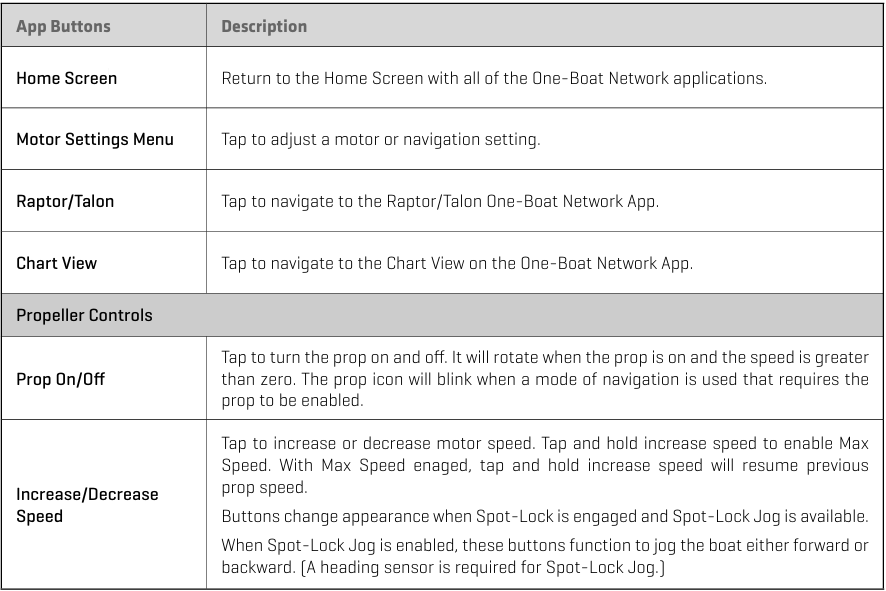
The One-Boat Network mobile app allows you to operate the trolling motor from your paired mobile device. The Trolling Motor App is dynamic and will change depending on which motor you have connected.
The following informational data is displayed on the Motor View.
Interactive Buttons on the Motor App
One-Boat Network App Buttons and Motor Controls
The following informational data is displayed on the Motor View. Become familiar with the interactive buttons on the Motor App. You can use these buttons to view different parts of the One-Boat Network App and to navigate your motor.
What’s on the Display
-
Prop Speed
- Displays the current Prop Speed, which can be adjusted in 1/2 speed increments between 0 and 10.
-
Speed Over Ground (SOG)
- Displays the current speed over ground.
-
Depth
- Displays the current water depth based on communication with the Humminbird control head.
-
Temperature
- Displays the current water temperature based on communication with the Humminbird control head.
-
Navigational Data Bar
- Displays dynamic navigation graphics, depending on which navigation method is in use.
- The left graphic displays the boat heading up, or when it navigation mode, it displays the navigational course line.
- The right graphic displays the orientation of the motor in relation to the keel.
-
Battery (only available on select trolling motors)
- Displays the estimated motor battery life when the prop is disengaged.
App Buttons
-
Home Screen
- Return to the Home Screen with all of the One-Boat Network applications.
-
Motor Settings Menu
- Tap to adjust a motor or navigation setting.
-
Raptor/Talon
Tap to navigate to the Raptor/Talon One-Boat Network App. -
Chart View
Tap to navigate to the Chart View on the One-Boat Network App.
Propeller Controls
-
Prop On/Off
- Tap to turn the prop on and off. It will rotate when the prop is on and the speed is greater than zero.
- The icon will blink when a mode of navigation is used that requires the prop to be enabled.
-
Increase/Decrease Speed
- Tap to increase or decrease motor speed.
- Tap and hold increase speed to enable Max Speed. With Max Speed engaged, tap and hold increase speed will resume previous prop speed.
- Buttons change appearance when Spot-Lock is engaged and Spot-Lock Jog is available.
- When Spot-Lock Jog is enabled, these buttons function to jog the boat either forward or backward. (A heading sensor is required for Spot-Lock Jog.)
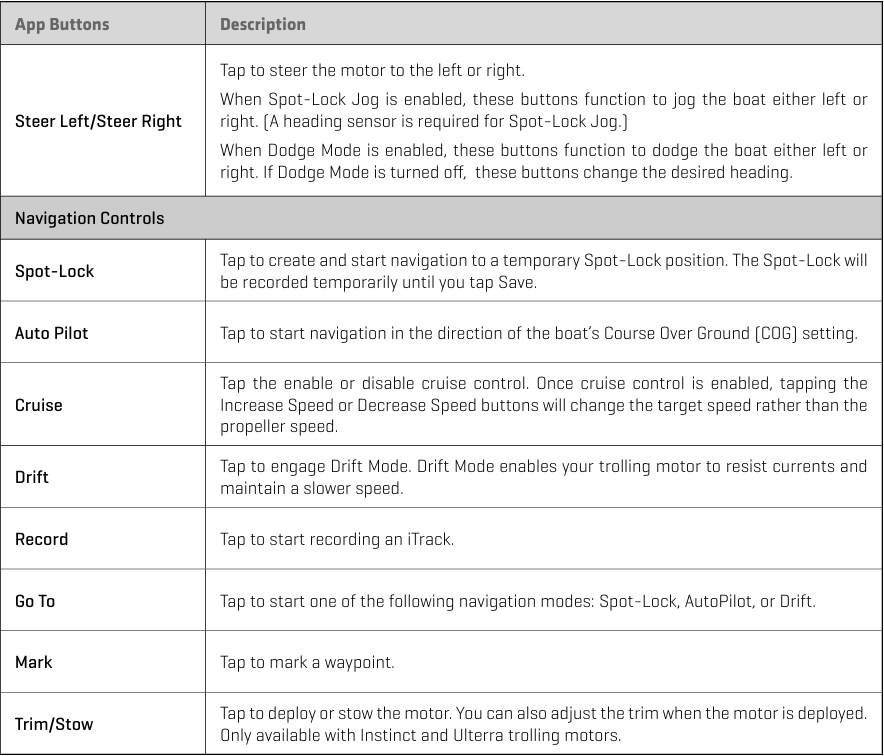
-
Steer Left/Steer Right
- Tap to steer the motor to the left or right.
- When Spot-Lock Jog enabled, these buttons function to jog the boat either left or right. (A heading sensor is required for Spot-Lock Jog.)
- When Dodge Mode is enabled, these buttons function to dodge the boat either left or right. If Dodge Mode is turned off, these buttons change the desired heading.
Navigation Controls
-
Spot-Lock
- Tap to create and start navigation to a temporary Spot-Lock position. The Spot-Lock will be recorded temporarily until you tap Save.
- The Advanced GPS Navigation Go To features including Spot-Lock Locations, i-Tracks, Waypoints, or Routes can be accessed only through the Advanced GPS Navigation Full Size Wireless Remote or a connected Humminbird fish finder with Motor Sync turn “On”. Currently, the Go To functionality for Spot-Lock Locations, i-Tracks, Waypoints and Routes is not part of the One-Boat Network App.
- Note: Up to 20 Spot-Lock or Waypoint locations can be recorded and up to 20 iTracks can be recorded and saved to the trolling motor, from the Advanced GPS Navigation Wireless Remote, the One-Boat Network App in Motor Controls or a connected Humminbird fishfinder. If the trolling motor is not connected to a Humminbird fish finder, a Wireless Remote must be used to engage and navigate the Go To data. Once the storage is full in the Advanced GPS Navigation system, the remote will display a Storage Full error screen. See Restoring My Data in the Owner’s Manual on how to delete some or all data to save more locations in the Advanced GPS Navigation system.
- If the Advanced GPS Navigation equipped trolling motor is connected to a Humminbird fish finder with Motor Sync “On” and the storage becomes full, the remote will display a notification and the data will be forwarded and saved to the connected Humminbird fish finder. This data can be engages and navigated through the Go To function on the fish finder. Waypoints saved on the One-Boat Network App in Chart View map do not transfer to Advanced GPS Navigation system or show on the Full Size Wireless Remote. When connected to a compatible Humminbird fish finder the follow limits for i-Tracks, Waypoints, and Spot-Lock locations can be saved through the One-Boat Network App:
- i-Tracks: 50
- Waypoint and Spot-Lock Locations: 10000
-
Auto Pilot
- Tap to start navigation in the direction of the boat’s Course Over Ground (COG) setting.
-
Cruise Control
- Tap the enable or disable cruise control.
- Once cruise control is enabled, tapping the Increase Speed or Decrease Speed buttons will change the target speed rather than the propeller speed.
-
Drift Mode
- Tap to engage Drift Mode.
- Drift Mode enables your trolling motor to resist currents and maintain a slower speed.
-
Record
- Tap to start recording an iTrack.
-
Go To
- Tap to start one of the following navigation modes: Spot-Lock, AutoPilot, or Drift.
-
Mark
- Tap to mark a waypoint.
-
Trim/Stow (only available with Instinct and Ulterra trolling motors.)
- Tap to deploy or stow the motor. You can also adjust the trim when the motor is deployed.
Motor Settings
-
Go To
- Tap to start one of the following navigation modes: Spot-Lock, AutoPilot, or Drift.
- When Spot-Lock is engaged, tap to Cancel Navigation or Save Spot-Lock.
- When AutoPilot or Drift are engaged, tap to Cancel Navigation, Adjust Course, or Reverse Navigation.
- The Advanced GPS Navigation Go To features including Spot-Lock Locations, i-Tracks, Waypoints, or Routes can be accessed only through the Advanced GPS Navigation Full Size Wireless Remote or a connected Humminbird fish finder with Motor Sync turn “On”. Currently, the Go To functionality for Spot-Lock Locations, i-Tracks, Waypoints and Routes is not part of the One-Boat Network App.
-
AutoPilot Mode
- Tap to select the AutoPilot mode: Locked Heading or Locked Course.
- Locked Heading uses an internal compass to provide a heading lock. It keeps the motor pointed in the same compass direction. If a manual steering correction is made, this mode locks onto the new compass heading to which the boat was steered.
- Locked Course not only uses compass heading but also GPS data to correct for cross winds, current and other external forces to keep the boat on the intended course. This mode generates a set of GPS points in a straight track line in the heading direction.
-
Arrival Mode
- This setting controls what Advanced GPS Navigation does once certain navigation modes are complete. Arrival Mode affects Go To functions for iTracks, waypoints, routes and Spot-Locks. There are four arrival modes
- Prop Off: Once navigation is finished, the Prop will turn off. You must be prepared to take manual control of the boat.
- Spot-Lock: After the boat has completed navigation, the system will create and engage a Spot-Lock.
- AutoPilot: Once navigation is finished, the system will continue navigating in AutoPilot in the final direction the boat was navigating.
- Auto Deploy Raptor/Talon: After the boat has completed navigation, the system will deploy the Raptor/Talon.
-
Eco Mode (only available on QUEST series trolling motors)
- Tap the Eco Mode slider to turn Eco Mode on or off. Turning on Eco Mode saves battery by reducing power consumption.
- Tap Low Battery to turn on the following Eco Mode notification when battery is below 20 percent: “Your battery is below 20%. Would you like to turn Eco Mode on?”
- Tap Full Battery to turn on the following Eco Mode notification when battery is above 80 percent: “Your battery is above 80%. Would you like to turn Eco Mode off?”
-
Foot Pedal (only available on QUEST series trolling motors)
- Tap to customize the One-Boat Button on your Foot Pedal.
-
Prop Auto-On
- When Prop Auto-On is turned on, the Advanced GPS Navigation will start the selected navigation mode as soon as it is selected. The propeller will turn on at the current speed setting. If the Prop Auto-On menu is turned on, but the propeller is not turning, the speed might be set to 0.
- When Prop Auto-On is turned off, you must start the propeller manually each time you select an Advanced GPS Navigation mode. However, this menu does not apply to SpotLock, Cruise Control or Drift Mode. These navigation modes will turn on the propeller as soon as they are engaged, regardless of the Prop Auto-On setting.
-
Straight Ahead on Deploy (only available on QUEST series trolling motors)
- Tap to turn Straight On Deploy on or off. Turning Straight On Deploy “on” adjusts the position of the Lower Unit to the Keel Offset position.
-
Audio Mode
- Tap to select one of two audio modes: Alarms Only or All Sounds.
-
Motor LED Brightness (only available on QUEST series trolling motors)
- Tap and drag the slider, or tap the plus (+) or minus (-) signs, to adjust the brightness on the motor LED display.
-
Dodge
- Turn on/off Dodge mode.
-
GPS Status
- Displays GPS status.
-
Manage Bluetooth Devices
- Tap to display all Bluetooth connections.
-
Setup and Calibration
- Tap to adjust for boat scale, stow orientation and keel mount offset. For trolling motors with an External Heading Sensor, it also calibrates and sets Heading Offset.
- Boat Scale: Tap and slide to adjust the boat scale so that the trolling motor has the appropriate amount of thrust for the size of the boat. For an installation where the motor thrust is undersized for the boat, increase the boat scale. For an installation where the motor thrust is oversized for the boat, decrease the boat scale. After setting the Boat Scale, tap on the arrow in the top-left corner of the screen for "Return to Home Screen". Your Boat Scale setting will automatically save.
- Stow Orientation: Tap to change the stow orientation to Prop Left or Prop Right or vice versa to match your installation configuration.
- Keel Mount Offset: Tap to adjust the position of the motor in relation to the Keel.
- Heading Offset: Tap to set the difference between the angle of the Keel of the boat and the angle at which the Heading Sensor is mounted to the deck of the boat.
-
Error Codes (only available on QUEST series trolling motors)
- If a QUEST series trolling motor senses an error, it will send a signal to the One-Boat Network App, and a red banner will appear on the display screen.
- Tap Error Codes in the pop-up menu or go to Motor Settings Error Codes to view the associated Error Code, and then reference the Error Code Table in this manual to resolve the error.
-
Demo Mode
- Turn on/off Demo mode.
-
Diagnostics
- Tap to display motor diagnostic information.
Change Motor Settings
Use the following instructions to customize the motor and navigation settings.
- Tap the Menu icon in the top, right corner.
- Select a menu option. Press and drag the slider, or tap the plus (+) or minus (-) signs, to adjust the setting.
Adjusting the Boat Scale with One Boat Network App
Adjust Boat Scale Trolling motor performance can be impacted by factors including, but not limited to, wind, water conditions, boat specifications, battery health, wiring, etc. Boat Scale provides a method of adjusting how the trolling motor will perform to account for these and other variables. The Minn Kota trolling motor comes from the factory with Boat Scale set to zero. This can be adjusted either up (+2) or down (-2) to increase or decrease the way the motor control software will apply power while using a navigation mode like Spot Lock.
An example of needing to reduce Boat Scale would be when the motor is over correcting or making many frequent adjustments while using Spot-Lock. In this case, try reducing Boat Scale -1 to reduce this behavior. If the behavior continues, reduce Boat Scale to -2. The opposite of this would be while using Spot-Lock, the motor is drifting away from its target location frequently or is struggling to make corrections. In this case, try increasing Boat Scale to +1 to help improve the motor’s accuracy. If the behavior continues, increase Boat Scale to +2.
- Tap Motor from the Home screen to access the Motor view.
- Tap the Menu icon in the top, right corner to open Motor Settings.
- In the Motor Settings menu, find and tap Setup and Calibration.
- In Setup and Calibration, use the slider under Boat Scale to adjust the Boat Scale from -2 to +2.
Stow Orientation
- Tap Motor from the Home screen to access the Motor view.
- Tap the Menu icon in the top, right corner to open Motor Settings.
- In the Motor Settings menu, find and tap Setup and Calibration.
- In Setup and Calibration, find and tap Stow Orientation.
- Tap the radial button for either Prop Right or Prop Left.
.
Adjusting the Boat Scale with One Boat Network App
Adjust Boat Scale Trolling motor performance can be impacted by factors including, but not limited to, wind, water conditions, boat specifications, battery health, wiring, etc. Boat Scale provides a method of adjusting how the trolling motor will perform to account for these and other variables. The Minn Kota trolling motor comes from the factory with Boat Scale set to zero. This can be adjusted either up (+2) or down (-2) to increase or decrease the way the motor control software will apply power while using a navigation mode like Spot Lock.
An example of needing to reduce Boat Scale would be when the motor is over correcting or making many frequent adjustments while using Spot-Lock. In this case, try reducing Boat Scale -1 to reduce this behavior. If the behavior continues, reduce Boat Scale to -2. The opposite of this would be while using Spot-Lock, the motor is drifting away from its target location frequently or is struggling to make corrections. In this case, try increasing Boat Scale to +1 to help improve the motor’s accuracy. If the behavior continues, increase Boat Scale to +2. 1. Tap Motor from the Home screen to access the Motor view. 2. Tap the Menu icon in the top, right corner to open Motor Settings. 3. In the Motor Settings menu, find and tap Setup and Calibration. 4. In Setup and Calibration, use the slider under Boat Scale to adjust the Boat Scale from -2 to +2.
- Tap Motor from the Home screen to access the Motor view.
- Tap the Menu icon in the top, right corner to open Motor Settings.
- In the Motor Settings menu, find and tap Setup and Calibration.
- In Setup and Calibration, use the slider under Boat Scale to adjust the Boat Scale from -2 to +2.
Stow Orientation
- Tap Motor from the Home screen to access the Motor view.
- Tap the Menu icon in the top, right corner to open Motor Settings.
- In the Motor Settings menu, find and tap Setup and Calibration
- In Setup and Calibration, find and tap Stow Orientation.
- Tap the radial button for either Prop Right or Prop Left.
Heading Sensor Calibration for Advanced GPS Navigation Using the One-Boat Network App
- From the OBN home screen, tap the Motor menu.
- The Motor menu opens the Motor app home screen. Before the Motor app home screen will open, tap Agree on the on-screen prompt.
- On the Motor app home screen, locate the Motor Setting button in the upper right-hand corner and tap it.
- In the Motor Settings menu, find and tap Setup and Calibration.
- In Setup and Calibration, find and tap Calibrate Heading Sensor.
-
Note: Review all safety warnings. Follow the prompts in the One-Boat Network app. Tap Start to begin the process.
- Drive the boat in two complete circles. The center of the app screen contains a counter that shows the progress.
- The progress of the boat around the circular path will show as a percentage completed for each circle while the boat navigates. Once the two circles are complete, the app screen will read “Calibration Successful. Please perform Sensor Offset.”
Heading Offset for Advanced GPS Navigation Using the One-Boat Network App
- Open the One-Boat Network (OBN) app on the mobile device. Make sure the mobile device is paired with the trolling motor.
- From the OBN home screen, tap the Motor menu. The Motor menu opens the Motor app home screen
- Before the Motor app home screen will open, tap Agree on the on-screen prompt.
- On the Motor app home screen, locate the Motor Setting button in the upper right-hand corner and tap it
- In the Motor Settings menu, find and tap Setup and Calibration.
- In Setup and Calibration, find and tap Offset Heading Sensor.
- Review all safety warnings. Follow the prompts in the One-Boat Network app. If the placement of the trolling motor is pointing forward and parallel to the keel, tap Set. The degree of Heading Sensor Offset shows at the bottom of the app Display.
- If the trolling motor needs to be adjusted, locate the Return button on the top-left corner of the app screen. Tap the Return button three times until the Motor app home screen displays.
- Use the Steer Right and Steer Left buttons to point the motor forward and parallel to the keel.
- When satisfied with the placement of the trolling motor, locate the Motor Setting button in the top-right corner and tap it.
- In the Motor Settings menu, find and tap Setup and Calibration.
- In Setup and Calibration, find and tap Offset Heading Sensor.
- If the placement of the trolling motor is pointing forward and parallel to the keel, tap Set.
- The degree of Heading Sensor Offset shows at the bottom of the app Display. Tap Return to close the Heading Sensor Offset and return to the home screen.
View QUEST Error Codes with the One-Boat Network App
If the trolling motor senses an error, it will send a signal to the One-Boat Network App, and a red banner will appear on the display screen. Tap Error Codes in the pop-up menu or use the Error Codes menu in Motor Settings to view the associated Error Code, and then reference the Error Code Table below to resolve the error.
- Tap Motor from the Home screen to access the Motor view.
- Tap the Menu icon in the top, right corner to open Motor Settings.
- In the Motor Settings menu, find and tap Error Codes.
- If there is an Error Code, the Error Code will be displayed on the screen. Refer to the table below for a description of the Error Code.
- If you cannot resolve/clear the error code with the above instructions, please see your local Authorized Service Center for further diagnosis
QUEST Error Codes
| Error Code | Error Name | Motor Effect | Possible Recovery Action(s) |
| 1.1 | Battery voltage too high | LED flashes red. Lower unit turns off. Prop and steering are disabled. |
Check voltage of batteries. If high, check for battery charger malfunction, or check if too many batteries are connected in series. Power cycle to reset. |
| 1.2 | Battery voltage too low | LED flashes red. Lower unit turns off. Prop and steering are disabled. Trim and steering are disabled (RT Instinct QUEST/Ulterra QUEST/Ulterra). |
Check battery connection. Charge trolling motor batteries. Power cycle to reset. |
| 1.3 | Steering circuit failure | LED flashes red. Lower unit turns off. Prop and steering are disabled. |
Power cycle to reset. |
| 1.4 | Lower unit over-heated | LED flashes red. Lower unit turns off. Prop and steering are disabled. |
Lower unit needs to cool down. Power cycle to reset. |
| 1.5 | Excessive current to lower unit | LED flashes red. Lower unit turns off. Prop and steering are disabled. |
Power cycle to reset. |
| 1.6 | Excessive current to lower unit when Prop is of | LED flashes red. Lower unit turns off. Prop and steering are disabled. |
Power cycle to reset. |
| 1.7 | Pre-charge circuit failure | LED flashes red. Lower unit turns off. Prop is disabled. Steering is disabled on Terrova QUEST and Ultrex QUEST. |
Power cycle to reset. |
| 1.8 | Stow/deploy horizontal sensors are reporting active at the same time | Prop, trim, steering and stow/deploy are disabled. | Service required; contact Minn Kota Authorized Service Provider for service. |
| 2.1 | Over-current trip on lower unit/inverter | The inverter stops the motor. | Toggle the Prop after the fault is cleared. |
| 2.2 | Lower unit/inverter synchronization error | The inverter stops the motor. | Toggle the Prop after the fault is cleared. |
| 2.3 | Loss of communication to inverter | The inverter stops the motor. | A loss of communications may require a power cycle. If communication is not restored, contact Minn Kota Authorized Service Provider for service. |
| 3.1 | Steering position sensor communication error | Limited steering speed. No steering feedback. No Auto Park or Straight Ahead Deploy |
Try power cycle to reset. Contact Minn Kota Authorized Service Provider for service. |
| 3.2 | Trim position sensor communication error | Reduced trim speed. Can only manually trim for 2 second intervals. No automatic stow or deploy |
Try power cycle to reset. Contact Minn Kota Authorized Service Provider for service. |
| 3.3 | Loss of magnet from steering position sensor | Limited steering speed. No steering feedback. No Auto Park or Straight Ahead Deploy. |
Try power cycle to reset. Contact Minn Kota Authorized Service Provider for service. |
| 3.4 | Loss of magnet from trim position sensor | Reduced trim speed. Can only manually trim for 2 second intervals. No automatic stow or deploy. |
Try power cycle to reset. Contact Minn Kota Authorized Service Provider for service. |
| 3.5 | Stow/deploy sensor error | Prop turns off and stow LED turns off. Disables stow/deploy for RT Instinct QUEST/Ulterra QUEST. |
RT Instinct QUEST/Ulterra QUEST: Check if actuator is stuck or if the magnet fell out. Terrova QUEST: If ramps flipped up while deployed, flip them back down. If sensors are damaged, contact Minn Kota Authorized Service Provider for service. |
| 3.6 | Deploy and horizontal sensors reporting active at same time | Prop, trim, steering, and stow/deploy are disabled. | Sensor is damaged. Contact Minn Kota Authorized Service Provider for service. |
| 3.7 | Emergency release pin sensor is reporting inactive | Prop and stow/deploy process are disabled. | Sensor is damaged. Contact Minn Kota Authorized Service Provider for service. |
| 3.8 | End-of-Travel/Foot Pedal sensor reporting active at same time | Steering is not active. | Sensor is damaged. Contact Minn Kota Authorized Service Provider for service. |
| 3.9 | Foot pedal pressure sensor failure | Steering is not active from the foot pedal. | Sensor is damaged. Contact Minn Kota Authorized Service Provider for service. |
| 3.10 | Stow/lever sensors reporting active at the same time | Prop off and stow LED is off. Steering could be limited. | Sensor is damaged. Contact Minn Kota Authorized Service Provider for service. |
| 3.11 | Stow/deploy/lever sensor reporting active | Prop off and stow LED is off. Steering could be limited. | Sensor is damaged. Contact Minn Kota Authorized Service Provider for service. |
| 3.12 | Steering calibration values are out of range | Steering range is limited. | Contact Minn Kota customer service or Authorized Service Provider to perform steering calibration. |
| 3.13 | No Change In Values From The Trim Position Sensor | Trim limited to manual operation 2 seconds at a time. | Turn the Motor off, then back on. If the Error repeats without visible obstructions take the Motor to an Authorized Service Provider. |
| 4.1 | Steering motor exceeds current limit | Steering time-outs will occur if current limit can be maintained or until torque on shaft is reduced. | Re-initiate steering by steering left or right. |
| 4.6 | Trim motor exceeds current limit | Disables trim. | Reinitiate trim by trimming in opposite direction. |
| 4.8 | Tilt motor exceeds current limit | Stops stow/deploy. | Auto-cleared. Re-initiate stow or deploy. |
Spot-Lock
Spot-Lock uses a single point as a reference for the spot you want to stay on. The reference point is a set of GPS coordinates that are captured at the location of the motor at the moment the Spot-Lock is saved. This point is recorded and saved into one of the Spot-Lock memory locations.
Spot-Lock works by recognizing the GPS coordinates and will automatically navigate the boat to keep it at the Spot-Lock location. If the Advanced GPS Navigation system sees the motor is not positioned at the Spot-Lock location, it will control motor speed and direction in an attempt to keep the motor on the Spot-Lock location.
Spot-Lock is based on the location of the motor, not the location or direction of the boat. Outside forces such as wind and current will cause the boat to move. Spot-Lock will navigate to maintain the motor on the Spot-Lock location regardless of the position of the boat.
Mark a Spot-Lock
- Tap Motor from the Home screen to access the Motor view.
- Tap Spot-Lock
Tap Save.
Disengage Spot-Lock
- With Spot-Lock engaged, tap Cancel or tap Spot-Lock again.
OR
- With Spot-Lock engaged, tap the Menu
- Tap Go To.
- Tap Cancel Navigation.
Spot-Lock Jog
Spot-Lock Jog allows you to jog the Spot-Lock location 5 feet in the selected direction from the current Spot-Lock location. The Spot-Lock Jog feature is only available with a Heading Sensor.
- With Spot-Lock engaged, tap the Forward, Back, Left, or Right buttons to jog the Spot-Lock location 5 feet in the selected direction. As soon as the boat is jogged to the new location, the new location is immediately saved into a temporary Spot-Lock memory and the boat will relate additional jogging with the temporary Spot-Lock location.
Go To Spot-Lock
- Manually navigate the boat to within a quarter mile of the saved Spot-Lock location.
- Tap the Menu icon in the top, right corner.
- Tap Go To, and select Spot-Lock.
- A list of Spot-Locks that are within a quarter mile will appear. Tap the Spot-Lock you want to navigate to. Navigation will start automatically.
Autopilot
AutoPilot keeps the trolling motor pointed in the direction you want to go. Each time wind or water current moves the boat off course, AutoPilot senses the change and steers itself back to the original heading. The AutoPilot direction is set every time a steering change is made.
Set the AutoPilot Mode There are two different modes of AutoPilot available: Locked Heading and Locked Course. There are distinct differences between the two AutoPilots and how they control your boat. Both AutoPilots have their benefits based on the type of fishing and bait presentation desired. We highly recommend getting on the water and trying both AutoPilot modes in various fishing situations and applications. With experimentation and time, you will find which AutoPilot works best for you in a given situation.
Locked Heading-uses an internal compass to provide a heading lock. It keeps the motor pointed in the same compass direction. If a manual steering correction is made, this mode locks onto the new compass heading to which the boat was steered. This method of heading tracking does not take into account external forces, such as side winds or currents, which can allow side drift.
Locked Course-not only uses compass heading but also GPS data to correct for cross winds, current and other external forces to keep the boat on the intended course. This mode generates a set of GPS points in a straight track line in the heading direction. When the user steers to a new heading, a new track line of GPS points are laid down in the new heading direction. When very extreme conditions exist, such as strong winds or current, the trolling motor may not have enough power to control the boat smoothly. In these extreme cases, it may be best to use Locked Heading and let the boat move with the wind or current if the motor is not powerful enough to overcome it. Use the following instructions to change the AutoPilot mode. 1. Tap Motor from the Home screen to access the Motor view. 2. Tap the Menu icon in the top, right corner. 3. Tap AutoPilot Mode, and select either Locked Heading or Locked Course.
Use the following instructions to change the AutoPilot mode.
- Tap Motor from the Home screen to access the Motor view.
- Tap the Menu icon in the top, right corner.
-
Tap AutoPilot Mode, and select either Locked Heading or Locked Course.
Engage AutoPilot
- Tap Motor from the Home screen to access the Motor view.
- Tap AutoPilot.
- Tap the Prop to turn the motor on.
- Adjust Heading: To adjust the desired heading, manually steer the motor to a new heading using the Propeller controls or tap Adjust to adjust your course by 5 degree intervals.
AutoPilot Adjust Course - Angle
The angle from the current intended course can be adjusted in 5 degree increments.
- While AutoPilot is engaged, tap Adjust, which is located just below the Course readout.
- The Adjust Course menu will appear at the bottom of the screen. Tap the left or right arrows to adjust the course angle by 5 degree increments.
- The new course will be updated on the Display Screen.
OR
- While AutoPilot is engaged, tap the Menu
- Tap Go To. icon in the top, right corner.
- Tap Adjust Course.
- The Adjust Course menu will appear. Tap the left or right arrows to adjust the course angle by 5 degree increments.
- The new course will be updated on the Display Screen.
AutoPilot Adjust Course - Jog for Locked Course AutoPilot Auto
Pilot Jog allows the AutoPilot course to be temporarily adjusted to the left or right. AutoPilot Jog is only available in Locked Course AutoPilot.
- While AutoPilot is engaged, tap Adjust, which is located just below the Course readout.
-
The Adjust Course menu will appear at the bottom of the screen with Angle to the left and Jog to the right. Tap the left or right arrows by Jog to adjust the course by 5 foot increments.
Disengage AutoPilot
- While AutoPilot is engaged, tap the AutoPilot button again.
OR
- While AutoPilot is engaged, tap the Cancel button.
OR
- While AutoPilot is engaged, tap the Menu
- Tap Go To.
- Tap Cancel Navigation.
- While AutoPilot is engaged, tap the AutoPilot button again.
Cruise Control
Cruise Control helps to compensate for the variations in external forces that affect the speed over ground and keeps the boat traveling at an even speed. When Cruise Control is engaged, the current speed over ground becomes the Target Speed. Cruise Control works to control the propeller speed to match the Speed Over Ground to the Target Speed.
Engage Cruise Control
- Tap Motor from the Home screen to access the Motor view.
- Tap Cruise Control.
- Tap Increase Speed or Decrease Speed to adjust the target speed and the Prop speed will adjust accordingly based on current conditions.
Disengage Cruise Control
- While Cruise Control is engaged, tap the Cruise Control button again. The Cruise Control Target Speed will disappear from the screen.
Max Speed
Max Speed sets the Prop speed to Speed 10 when engaged and returns to the previously set speed when disengaged. Max Speed can be engaged regardless of what the current Prop speed is.
Engage Max Speed
- Tap Motor from the Home screen to access the Motor view.
- While the Prop is engaged, tap and hold Speed Up. The Max Speed icon will display next to the Prop Speed.
Disengage Max Speed
- When Max Speed is engaged, tap Speed Down to disengage. The Max Speed icon will disappear from the display screen.
Drift Mode
Drift Mode combines AutoPilot features with Cruise Control. Engaging drift mode will keep the trolling motor pointed in the direction you want to go, and at the speed you want.
Engage Drift Mode
- Tap Motor from the Home screen to access the Motor view.
- Tap Drift Mode.
- Adjust Heading: To adjust the desired heading, manually steer the motor to a new heading using the Propeller controls. This feature is only available if Dodge mode is turned off.
Adjust Course - Angle
- With Drift Mode engaged, tap Adjust, which is located just below the Course readout.
- The Adjust Course menu will appear at the bottom of the screen. Tap the left or right arrows to adjust the course angle by 5 degree increments.
- The new course will be updated on the Display Screen.
OR
- With Drift Mode engaged, tap the Menu
- Tap Go To. icon in the top, right corner.
- Tap Adjust Course.
- Under Angle, tap the Left or Right Arrows to adjust the course by 5-degree increments.
Drift Mode Jog
Drift Mode Jog allows the Drift course to be adjusted to the left or right and still maintain the same course.
- With Drift Mode engaged, tap Adjust, which is located just below the Course readout.
- The Adjust Course menu will appear at the bottom of the screen with Angle to the left and Jog to the right. Tap the left or right arrows by Jog to adjust the course by 5-foot increments.
OR
- With Drift Mode engaged, tap the Menu icon in the top, right corner.
- Tap Go To.
- Tap Adjust Course.
- Under Jog, tap the Left or Right Arrows to adjust the course by 5-foot increments.
Reverse Drift Mode
Reverse Drift Mode allows the user to change target course to the opposite direction of travel.
- With Drift Mode engaged, tap Reverse, which is located just below the Speed readout.
OR
- With Drift Mode engaged, tap the Menu
- ap Go To.
- Tap Reverse Navigation.
Disengage Drift Mode
- With Drift Mode engaged, tap the Drift Mode button again.
OR
- With Drift Mode engaged, tap the Cancel button.
OR
- With Drift Mode engaged, tap the Menu
- Tap Go To.
- Tap Cancel Navigation.
Record an iTrack
When Record iTrack is turned on, iTrack recording will begin from the current vessel position, and will automatically stop when a 2 mile distance is achieved. The boat must already be moving when iTrack recording is initiated. iTrack is only available with the following modes of navigation: Manual, Cruise Control, and AutoPilot.
Start iTrack Recording
- Tap Motor from the Home screen to access the Motor view.
- Start navigation.
- Tap Record.
Track Recording
- While iTrack is recording, tap Stop.
- Save or Discard: Follow the on-screen prompts to save the iTrack.
Mark a Way Point
Waypoints are saved latitude/longitude positions. They mark a position of interest such as your favorite fishing area, structure or marker buoy. Waypoints work similar to Spot-Locks. When i-Pilot navigates Waypoints, i-Pilot takes control over all steering functions; speed can be manually controlled or the Cruise Control function can also be used. For more information on how to work with Waypoints please see your Humminbird manual. Mark a Waypoint
- Tap Motor from the Home screen to access the Motor view.
-
Tap Mark. A waypoint is created and saved to the motor contol head.
Circle Mode
Circle Mode uses a compatible Humminbird fish finder to set a point to navigate around. Once a point is set, the boat can navigate either clockwise or counterclockwise around the set point in a circle. The radius of the circle can be set between 30 to 500 feet. Circle Mode cannot be activated from the OBN App, but the direction of travel, radius of the circle can be adjusted, and the function can be disengaged using the app. See the Humminbird manual to learn more about Circle Mode.
Change the Radius
- While Circle Mode is engaged, tap Adjust, which is located just below the Radius readout.
- The Adjust Radius menu will appear at the bottom of the screen. Tap the left or right arrows to adjust the circle radius by 5-foot increments.
- The new radius will be updated on the Display Screen.
Reverse Direction
- While Circle Mode is engaged, tap Reverse, which is located to the right of the screen.
Disengage Circle Mode
- While Drift Mode is engaged, tap the Cancel button.
Follow the Contour
Follow the Contour allows you to navigate a contour on all Humminbird LakeMaster, CoastMaster, and AutoChart ZeroLine charts. When starting Follow the Contour, all other types of navigation are stopped on the fish finder and the Ethernet network. The boat can navigate either clockwise or counterclockwise around the contour. The Offset from the contour can range from -300 to +300 feet. Follow the Contour cannot be activated from the OBN App, but the direction of travel, the contour offset, and disengaging the function can be performed using the app. See the Humminbird manual to learn more about Follow the Contour. If using an AutoChart ZeroLine Map Card, see the AutoChart ZeroLine Map Card Accessory Manual for more information.
Change the Offset
- While Follow the Contour is engaged, tap Adjust, which is located just below the Contour readout.
- The Contour Offset menu will appear at the bottom of the screen. Tap the plus or minus buttons or drag the slider to adjust the offset.
- The new contour will be updated on the Display Screen.
Reverse Direction
- While Follow the Contour is engaged, tap Reverse, which is located to the right of the screen.
Disengage Follow the Contour
-
While Follow the Contour is engaged, tap the Cancel button.
Follow the Shoreline
Follow the Shoreline allows you to navigate a shoreline on a Humminbird LakeMaster or CoastMaster SD card with VX technology. When starting Advanced GPS Navigation to Follow the Shoreline, all other types of navigation are stopped on the fish finder and the Ethernet network. The boat can navigate either clockwise or counterclockwise around the shoreline. The Offset from the shoreline can range from 10 to 300 feet. Follow the Shoreline cannot be activated from the OBN App, but the direction of travel, the shoreline offset, and disengaging the function can be performed using the app. See the Humminbird manual to learn more about Follow the Shoreline.
Change the Offset
- While Follow the Shoreline is engaged, tap Adjust, which is located just below the Contour readout.
- The Shoreline Offset menu will appear at the bottom of the screen. Tap the plus or minus buttons or drag the slider to adjust the offset.
- The new contour will be updated on the Display Screen.
Reverse Direction
- While Follow the Shoreline is engaged, tap Reverse, which is located to the right of the screen.
Disengage Follow the Shoreline
-
While Follow the Shoreline is engaged, tap the Cancel button.
Deploy or Stow the Trolling Motor
If you have an Ulterra, Ulterra QUEST or RT Instinct QUEST trolling motor installed, you can deploy or stow the motor using the OneBoat Network App.
Deploy the Motor
The first time you deploy the motor (after installation or after defaults have been reset), you will adjust the trim for operation. The motor will save the most-recent trim setting and apply it when the motor is deployed again.
- Tap Motor from the Home screen to access the Motor view.
- Tap Trim/Stow. The Trim/Stow/Deploy box will appear.
- Tap Deploy. Pause: Tap the Pause button.
Adjust the Trim
When trimming the motor using the One-Boat Network App, the motor is programmed to operate safely and limit Prop rotation when it is within certain limits. The Prop will temporarily stop while trimming the motor and resume once trimming is stopped. Trim limits are in place to avoid damage to the unit. An upper trim limit is set 12" from the bottom of the mount to the center of the lower unit. A lower trim is set approximately 1.5" from the bottom of the control head to the trim housing. A Prop lockout region, defined as 14" from the bottom of the mount to the center of the lower unit, is used to eliminate the possibility of the motor contacting the boat hull. All functions, with the exception of manual steer and record iTrack, are canceled upon trimming into this region.
Use the following instructions to adjust the trim.
- Tap Motor from the Home screen to access the Motor view.
- Tap Trim/Stow. The Trim/Stow/Deploy box will appear.
- Tap Trim Up or Trim Down.
Stow the Motor
Use the following instructions to stow the Ulterra trolling motor.
- Tap Motor from the Home screen to access the Motor view.
- Tap Trim/Stow. The Trim/Stow/Deploy box will appear.
-
Tap Stow. Pause: Tap the Pause button.
Shallow Water Anchors Using One-Boat Network App
The One-Boat Network App can be used to control your Minn Kota shallow water anchor. The Anchor Application is dynamic and will change depending on if you are connected to a Talon or Raptor shallow water anchor. You must first select your shallow water anchor source.
Raptor Shallow Water Anchor Using the One-Boat Network App
Select Anchor Source
- Tap the Settings icon under the One-Boat Network banner at the top right of the app.
- Select Anchor Source.
- Tap the radio button for Raptor or Talon.
Raptor One-Boat Network App Buttons
The One-Boat Network App allows you to control and update the Raptor from your paired mobile device.
Deploy: Double tap the Auto Down button.
Pause: While the anchor is deploying or retracting, tap the Pause button once. Tap the Auto Down button again to resume deployment, or tap the Auto Up button again to resume retraction.
Retract: Tap the Auto Up button once.
Customizing the Raptor Settings with the One-Boat Network App
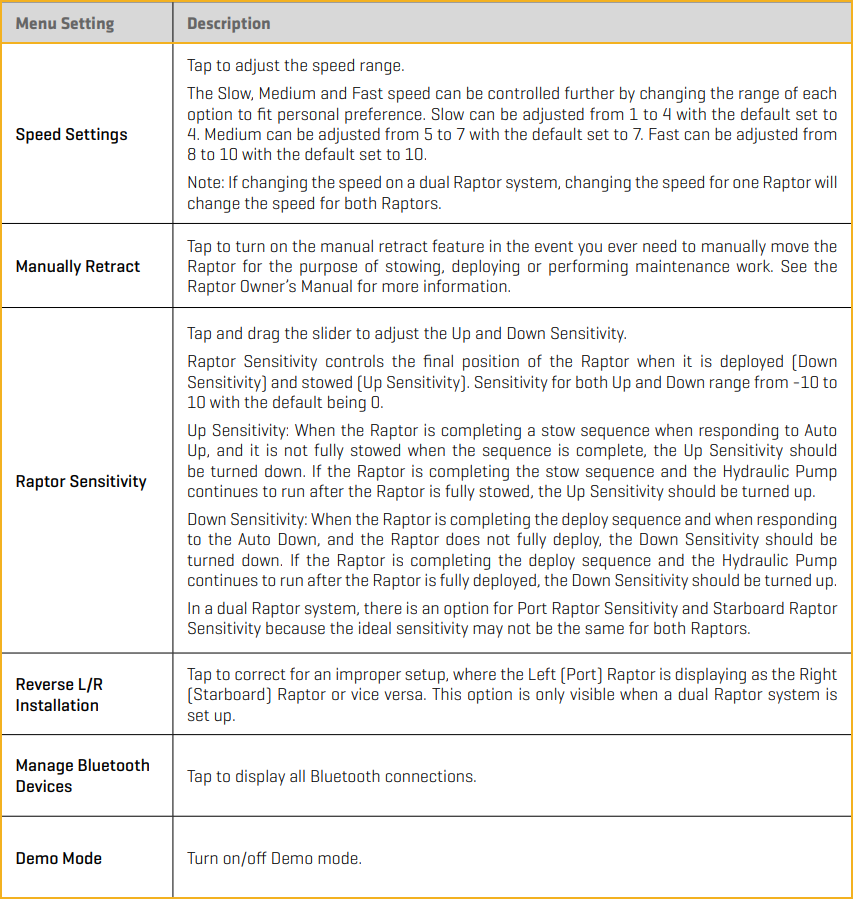
Talon Shallow Water Anchor Using the One-Boat Network App
Select Anchor Source
- Tap the Settings icon under the One-Boat Network banner at the top right of the app.
- Select Anchor Source.
- Tap the radio button for Raptor or Talon.
Talon One-Boat Network App Buttons
The One-Boat Network App allows you to control and update the Talon from your paired mobile device.
Deploy: Double tap the Auto Down button.
Pause: While the anchor is deploying or retracting, tap the Pause button once. Tap the Auto Down button again to resume deployment, or tap the Auto Up button again to resume retraction.
Retract: Tap the Auto Up button once.
Customizing the Talon Settings with the One-Boat Network App
Chart Management Using One-Boat Network App
You can subscribe to VX Charts of USA and Canada directly from your mobile device. A Wi-Fi or cellular data connection is required.
A VX Chart yearly subscription provides online and offline access to Humminbird LakeMaster VX and CoastMaster VX Premium US and Canada cartography. The subscription includes access to the following features:
- The highest detail contour lines available from LakeMaster and CoastMaster charts.
- 10,000+ US and Canadian lakes and complete US coastal coverage.
- Offline access of chart data.
- Layers including shaded relief, aerial photography and bottom hardness.
- Switch from fishing charts to nautical charts, or create your own custom view settings.
- Plan your fishing day with CoastMaster predictive tide and current data.
- Synchronize depth contours and shorelines of your charts with actual water levels.
- Access a wealth of navigational data such as navigation aids, artificial reefs and points of interest. ∆
- User-defined depth highlight ranges that allow you to easily target productive water and stay in the bite zone.
Subscribe to VX Charts
Use the instructions in this section to start your VX Charts subscription for the One-Boat Network App.
- Tap Chart Management from the main menu.
- Under the Subscriptions tab, tap VX Charts of USA and Canada. A screen will display reviewing the subscription benefits.
- Tap Subscribe at the bottom of the screen.
- The Apple Store or Google Play Store tab will appear with information on the subscription purchase.
- Tap Subscribe to confirm your purchase. Depending on your mobile device settings, you may be asked to enter your mobile device account password to confirm your purchase.
- A pop-up will display showing that your purchase was successful. Tap OK.
Purchase a Chart Card for Your Fishfinder
You can also purchase a physical chart card to use with your Humminbird control head.
- Tap Chart Management from the main menu.
-
Under the Subscriptions tab, tap Purchase Chart Cards. This link will direct you to the Humminbird Web Site where you can purchase physical chart cards.
Remove Your Subscription
If you would like to cancel your subscription to VX Charts of USA and Canada, follow the instructions below.
- Tap Chart Management from the main menu.
- Under the Subscriptions tab, tap Manage Subscriptions.
- Tap Chart Management from the main menu.
- Follow the on-screen instructions to remove a subscription from your mobile device.
Change the Chart Source
Once you have an active subscription, you will need to select the chart source you want to view:
- LakeMaster VX Premium - U.S. Inland
- LakeMaster VX Premium - Canada Inland
- CoastMaster VX - U.S. Coastal
- CoastMaster VX Premium - Florida Coastal
The Basemap will show up for all areas, but you must select the chart source to view LakeMaster or CoastMaster features.
- Tap the Chart View icon.
- Tap the Settings Menu icon in the top, right corner.
- Scroll down to Chart Management, and tap Selected Chart.
- Tap the LakeMaster or CoastMaster chart you want to view in the One-Boat Network App.
Download Charts for Offline Viewing
If you would like to view the charts offline, you can download the basemap or VX charts to your mobile device.
- Tap Chart Management from the main menu.
- Tap the Offline Charts tab.
-
To download the VX Basemap, tap Download Basemap. The download data bar will display the download progress.
- OR To download a LakeMaster or Coastmaster chart, select the chart type you would like to download, and tap Download Areas to the right of the chart type. A tiled Chart View will appear on screen.
- Select either Chart Data or Premium Layers by tapping one of the tabs at the top of the screen. Premium Layers include arial views, shaded relief and bottom hardness, where available.
- On the map, tap the tiles for the areas you would like to download. The Data Bar at the bottom of the screen will show the memory needed for the selected tiles and the free space you have available. You can choose to select all tiles or deselect all tiles. If a tile is outlined in red diagonal hash marks, that means that there is no data available for this area.
- Once downloaded, the selected tiles will be highlighted.
-
Tap the Back icon to go back to Offline Charts. You can now view the downloaded areas offline.
Delete Downloaded Charts
Delete All Downloaded Data
- Tap Chart Management from the main menu.
- Tap the Offline Charts tab.
- Tap the More Information icon to the right of the chart type.
- Tap Delete Offline Data.
- Tap Confirm to delete all offline data related to that chart type.
Delete A Downloaded Tile
- Tap Chart Management from the main menu.
- Tap the Offline Charts tab.
- Tap Download Area.
- Tap the Trash icon on any downloaded tile you want to delete.
Self Help and Technical Support with One-Boat Network App
Self Help
You can use the One-Boat Network App to direct you to operation manuals, installation guides, and general reference material that we have available.
- Tap Self Help from the One-Boat Network App Home screen.
- Tap one of the following options to continue:
Self Help Definitions
Request a Call Back from Humminbird or Minn Kota Technical Support
The One-Boat Network App allows you to request a Technical Support callback if you need assistance with your Minn Kota or Humminbird product. This way you can keep fishing and not worry about waiting on hold. In addition, the Callback Request will share a snapshot of your product, so that our Technical Support can help you resolve your issue.
- Tap Request a Callback from the One-Boat Network Home screen.
- Read the confirmation message and tap Confirm.
- Tap one of the following callback options: Minn Kota Callback: Select to get support with Minn Kota motors, anchors, chargers or accessories. Humminbird Callback: Select to get support with Humminbird cartography, fish finders or accessories.
- Review the regular office hours and tap Continue.
- Minn Kota: Select the type of product you are calling about, type or scan the serial number and provide a brief description of the problem. Humminbird: Complete the form with your contact information, time zone, and a brief description of the problem.
- Tap Request a Callback. A message will appear with the estimated wait time and your reference ID.
- Tap Confirm.
Register Your Products
If you haven’t already registered your Minn Kota and Humminbird products, you can quickly complete registration through the One-Boat Network App. Registering your products provides you with the latest product updates and support.
- Tap Register Your Products from the One-Boat Network Home screen.
- Select either Register Your Minn Kota or Register Your Humminbird.
- Complete the Registration form.
- Tap Submit Registration.